- Key Takeaway
- A SHA-256 hash is a 64-character fingerprint that changes completely if even one byte of a file is modified. Compare the hash of your downloaded file against the one published on the download page — if they match, the file is authentic and unmodified. If they don't match, do not run the file.
How to Verify a Download (SHA-256) on Windows 10/11 (Quick Guide)
When you download software from the internet, you’re basically trusting that the file is: complete, not corrupted, and not modified.
The simplest way to confirm that is by checking the file’s SHA-256 hash (also called a checksum). Think of it like a file fingerprint: if even one byte changes, the SHA-256 hash changes completely.
Quick truth: If the SHA-256 hash does not match, do not run the file. Re-download it (or assume it’s been modified).
What is SHA-256 (and why should you care)?
SHA-256 is a modern hashing algorithm used to verify file integrity. Many legitimate software sites publish SHA-256 checksums so users can confirm their download is authentic.
- ✅ MATCH: file is authentic (safe to use)
- ❌ MISMATCH: file may be corrupted or tampered with (do not run)
The easiest method (recommended): Tom’s Quick Hash Checker
I made a tiny free portable Windows tool that lets you verify downloads in seconds: Tom’s Quick Hash Checker.
Best part: It’s drag & drop, doesn’t freeze on large files, and shows an instant MATCH / MISMATCH result.
Download links
- Download Link: Download Tom’s Quick Hash Checker
- Online instructions (how to use it): https://tomdahne.com/TomsBGRemover/TomsQuickHash_readme.html
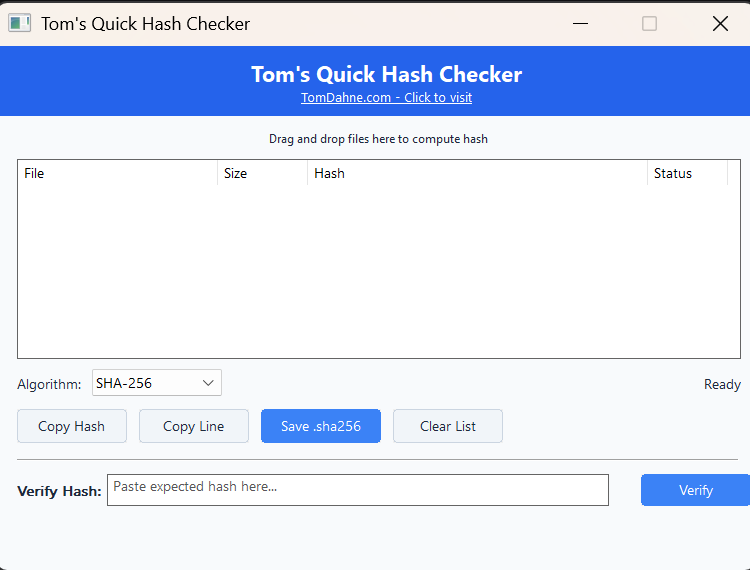
Tom’s Quick Hash Checker: drag & drop a ZIP/EXE, compute SHA-256, then verify against the expected checksum.
Step-by-step: verify a downloaded file using the app
- Download the file you want to verify (ZIP or EXE).
- Open Tom’s Quick Hash Checker.
- Drag and drop the downloaded file into the app window.
- Copy the expected SHA-256 hash from the download page.
- Paste it into the Verify Hash box.
- Click Verify.
- Check the result:
- ✅ MATCH = file is authentic and unmodified
- ❌ MISMATCH = re-download it (or don’t run it)
Alternative method: verify using Windows PowerShell
If you prefer built-in Windows tools, you can use PowerShell to compute SHA-256 without installing anything.
PowerShell command
Open PowerShell and run:
Get-FileHash "C:\Path\To\YourFile.zip" -Algorithm SHA256Compare the hash PowerShell prints to the SHA-256 shown on the download page.
Important: SHA-256 hashes are 64 characters long. Make sure you copied the full hash — some browsers wrap long lines.
What to do if your hash does NOT match
If you see a mismatch, here’s the practical checklist:
- Re-download the file (partial downloads happen)
- Make sure you’re hashing the correct file/version
- Make sure you’re using SHA-256 (not SHA-512)
- If it still mismatches, do not run the file
Rule: If it’s a mismatch, assume it’s unsafe until proven otherwise.
Summary (no fluff)
- Hash checking is the simplest way to verify downloads
- SHA-256 is the modern default checksum
- Tom’s Quick Hash Checker makes verification fast and easy