What Is This?
Tom's Command Console is a free Windows utility that gives you access to 190 useful system commands, diagnostics, and Google search operators across 20 categories — all with clear explanations of what each command does before you run it.
It was built for people who want to troubleshoot, maintain, and understand their Windows PC without needing to memorise terminal commands or risk running something they don't understand.
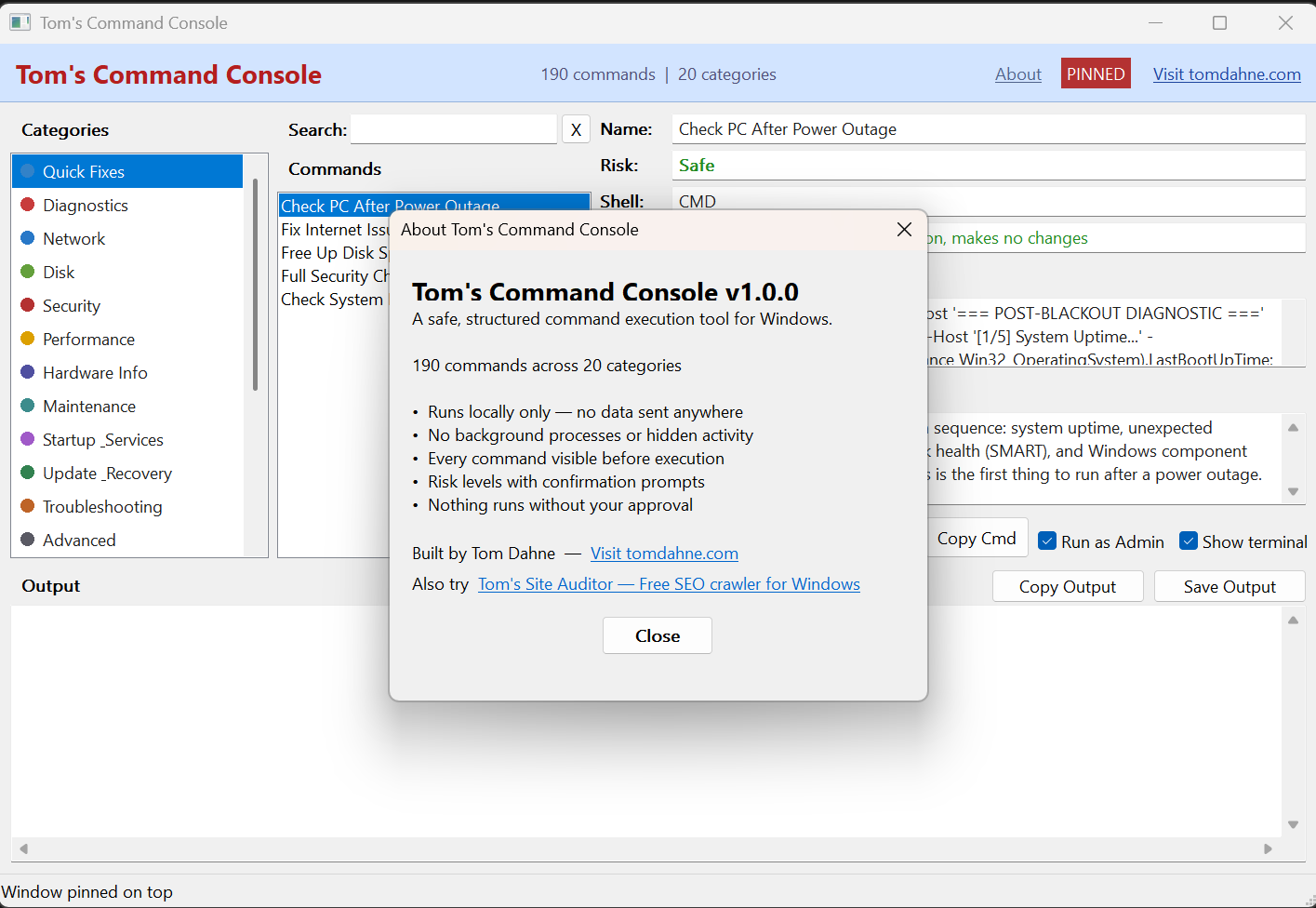
Trust & Safety
This tool runs system commands on your PC, so trust matters. Here is exactly how it works:
Quick Start
When you open the app, you will see categories on the left and commands in the middle. Click any command to see a full explanation on the right before running it.
Features
- 190 commands across 20 categories
- Quick Fixes — one-click diagnostic workflows that run multiple checks in sequence
- Google Dorks — SEO research, file discovery, and OSINT search operators
- Search box to instantly find any command across all categories (Ctrl+F)
- Real-time output streaming with optional terminal window mode
- Copy Command button to grab the raw command for your own use
- Auto-detect commands that need Administrator privileges
- Pin-on-top mode for use alongside the terminal window
- Copy and Save output to clipboard or text file
- DPI-aware layout that scales on any display
Keyboard Shortcuts
| Shortcut | Action |
|---|---|
| Ctrl + F | Jump to the search box from anywhere |
| Escape | Clear search results and return to category view |
Risk Levels
Every command has a risk level so you know what to expect:
| Level | Meaning | Behaviour |
|---|---|---|
| Safe | Read-only, displays information | Runs immediately on click |
| Warning | May modify system settings | Asks for confirmation first |
| Advanced | Significant system changes | Strong warning before execution |
Commands also show a Type indicator: READ ONLY (just displays information) or MODIFIES SYSTEM (makes changes to your PC).
Categories
System Commands
Quick Fixes, Diagnostics, Network, Disk, Security, Performance, Hardware Info, Maintenance, Startup & Services, Update & Recovery, Troubleshooting, Advanced, Quick Access, Windows Tools, and Package Manager.
Google Dorks
Operators, SEO Research, File Discovery, Security Recon, and OSINT Research. Each dork is an editable Google search query that launches directly in your browser.
Terminal Mode
Check "Show terminal" to run commands in a visible terminal window instead of capturing output in the app. The terminal stays open between commands so you can see live progress from long-running operations like system file scans. Pin the app on top to keep it visible over the maximised terminal.
Administrator Commands
Some commands require Administrator privileges. The app auto-detects these and checks the "Run as Admin" box for you. If you are not already running as Administrator, the app will offer to restart itself with elevated privileges.
Frequently Asked Questions
Yes. Because the EXE is unsigned and new, Windows SmartScreen and Defender may flag it as unrecognised. This is a false positive that affects all new unsigned software. You can submit the file to Microsoft at microsoft.com/wdsi/filesubmission as a false positive, or add a Defender exclusion for the file.
The Package Manager commands require the Windows Package Manager (winget), which comes pre-installed on Windows 11. On Windows 10, you can install it from the Microsoft Store (App Installer). If winget is not installed, those commands will show a "not recognized" error — all other commands still work normally.
Some commands require Administrator privileges. The app auto-detects most of these and checks the "Run as Admin" box, but if you see "Access Denied", tick the "Run as Admin" checkbox and run the command again. The app will offer to restart with elevated privileges.
A few commands depend on Windows edition or optional features. For example, gpedit.msc only exists on Windows Pro and Enterprise. manage-bde (BitLocker) is also Pro/Enterprise only. The command descriptions note these requirements. The command is not broken — it is just not available on your edition of Windows.
No. Commands like winget list, winget export, and winget show need to query online repositories and scan all installed packages. This can take 30 seconds to several minutes depending on how many packages are installed and your internet speed. The command descriptions include estimated times.
Not in v1.0.0 — all commands are built into the app. Custom command support via an external data file is planned for a future version.
No. The app runs entirely on your local machine. There is no analytics, no telemetry, no update checking, no network activity of any kind. The only commands that use the internet are the ones that explicitly say so in their descriptions (like network speed test or winget queries).
System Requirements
Windows 10 or Windows 11. No additional software required. Some commands may only be available on Windows Pro or Enterprise editions (noted in their descriptions). The winget commands require the App Installer package (pre-installed on Windows 11, available from the Microsoft Store on Windows 10).
More Tools
Tom's Command Console is part of a growing collection of practical Windows desktop tools: