Free Tool — No Install Needed

Run Powerful Windows Commands Safely — Without the Terminal

190 system commands, diagnostics, network fixes, security audits, and Google Dorks — all with clear explanations of what each command does before you run it. One portable EXE, zero dependencies.

Download Free (500 KB) Read Documentation
190Commands
20Categories
$0Free Forever
0 KBDependencies
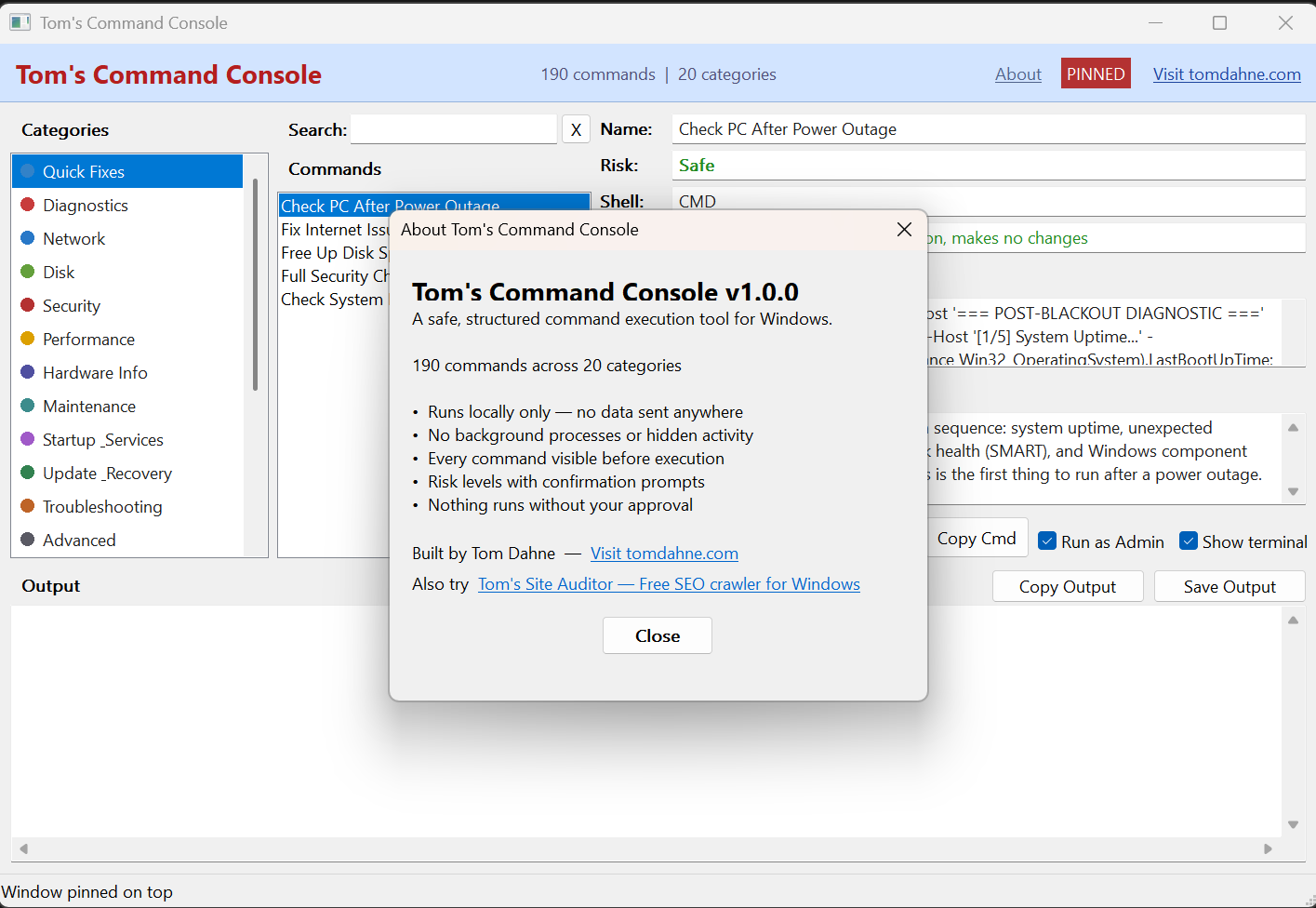
Tom's Command Console — Main Window showing system diagnostics and command details
The Problem

Your power went out. Now what commands do you run?

Every time your PC loses power unexpectedly, you end up googling "how to check if Windows is okay after a blackout" and piecing together terminal commands from five different forum posts. And if you're not comfortable with the command line, you just hope nothing broke.

Tom's Command Console gives you every diagnostic, fix, and health check you need — with a plain-English explanation of what each command does before you run it. No memorising commands. No guessing what's safe. No terminal experience required.

Built for people who want answers, not commands

QF

Quick Fixes

One-click diagnostic workflows: "Check PC After Power Outage", "Fix Internet Issues", "Full Security Check", and more.

EX

Every Command Explained

Full description of what each command does, what to expect, and how long it takes — before you click Run.

RL

Risk Levels

Safe, Warning, or Advanced labels on every command. Risky commands require explicit confirmation before execution.

TM

Terminal Mode

Run commands in a visible terminal window for live progress on long operations like SFC scans and disk checks.

AD

Auto Admin Detection

Commands that need Administrator privileges are automatically flagged. The app handles elevation via UAC.

GD

Google Dorks

SEO research, file discovery, OSINT, and security recon dorks — editable and launchable directly in your browser.

What's Inside

190 commands across 20 categories

Every command is categorised, risk-labelled, and described in plain English. Use the built-in search (Ctrl+F) to find any command instantly.

Quick Fixes
Diagnostics
Network
Disk
Security
Performance
Hardware Info
Maintenance
Startup & Services
Update & Recovery
Troubleshooting
Advanced
Quick Access
Windows Tools
Package Manager
Dorks: Operators
Dorks: SEO
Dorks: Files
Dorks: Security
Dorks: OSINT

Your PC, your data, your control

This tool runs system commands — so trust matters. Here's exactly how it works:

Runs locally only — nothing is sent to any server
No background processes — does nothing when idle
Every command visible — you see exactly what will run
Nothing runs without approval — you click Run every time
Risk labels on everything — Safe, Warning, or Advanced
Confirmation prompts — risky commands always ask first
No data collection — no analytics, telemetry, or tracking
Fully offline capable — works without internet
Download

Get Tom's Command Console — free, forever

Tom's Command Console v1.0.0

Windows 10/11 (64-bit) • Single portable EXE • ~500 KB • No install needed
Download Free (.zip)

Unzip and run. No installer, no admin rights required, no account.
Read the documentation

Frequently asked questions

Windows Defender flags the EXE — is it safe?

Yes. Because the EXE is unsigned and new, SmartScreen may flag it as unrecognised. This is a false positive that affects all new unsigned software. You can submit it to Microsoft as a false positive or add an exclusion.

"winget is not recognized" — what do I do?

The Package Manager commands require winget, which is pre-installed on Windows 11. On Windows 10, install it from the Microsoft Store. All other commands work without it.

A command says "Access Denied" — what's wrong?

Some commands need Administrator privileges. The app auto-detects most of these, but if you see "Access Denied", tick the "Run as Admin" checkbox and run again.

Does the app send any data anywhere?

No. Zero network activity. No analytics, no telemetry, no update checks. The only commands that use the internet are ones that explicitly say so (like speed test or winget queries).

Can I add my own commands?

Not in v1.0 — all commands are built in. Custom command support via an external data file is planned for a future version.

What's the difference between this and just using CMD?

Tom's Command Console explains what every command does before you run it, labels risk levels, prevents accidental execution of dangerous commands, and gives you one-click diagnostic workflows. It's CMD with guardrails and a guide.

More tools from Tom Dahne

Desktop utilities that work offline, cost once, and respect your data.

Tom's Site Auditor — $29 TomsBGRemover — $29 More Free Tools